Connect your phone
- Unlock the phone and plug it into the Mac.
- Pull down the notification shade, tap the USB notification and choose File transfer.
- DroidDock connects by itself for Samsung phones. For other phones, click USB in the toolbar (or File → Connect with USB).
Only one program can talk to the phone at a time. If DroidDock can’t connect, quit Smart Switch, Android File Transfer, OpenMTP, MacDroid, Image Capture and Photos, then try again.
Faster browsing with USB debugging (optional)
In “File transfer” mode the phone answers one file at a time, so folders with thousands of photos
take a while to load. With USB debugging on, DroidDock uses Android’s adb tool instead and
lists any folder in about a second:
- Install adb:
brew install --cask android-platform-tools(or install Android Studio). - On the phone, turn on Developer options (Settings → About phone → Software information → tap Build number seven times), then Developer options → USB debugging.
- Plug in and tap Allow on the “Allow USB debugging?” prompt.
DroidDock picks adb automatically when it’s available and falls back to File transfer otherwise.
Browse
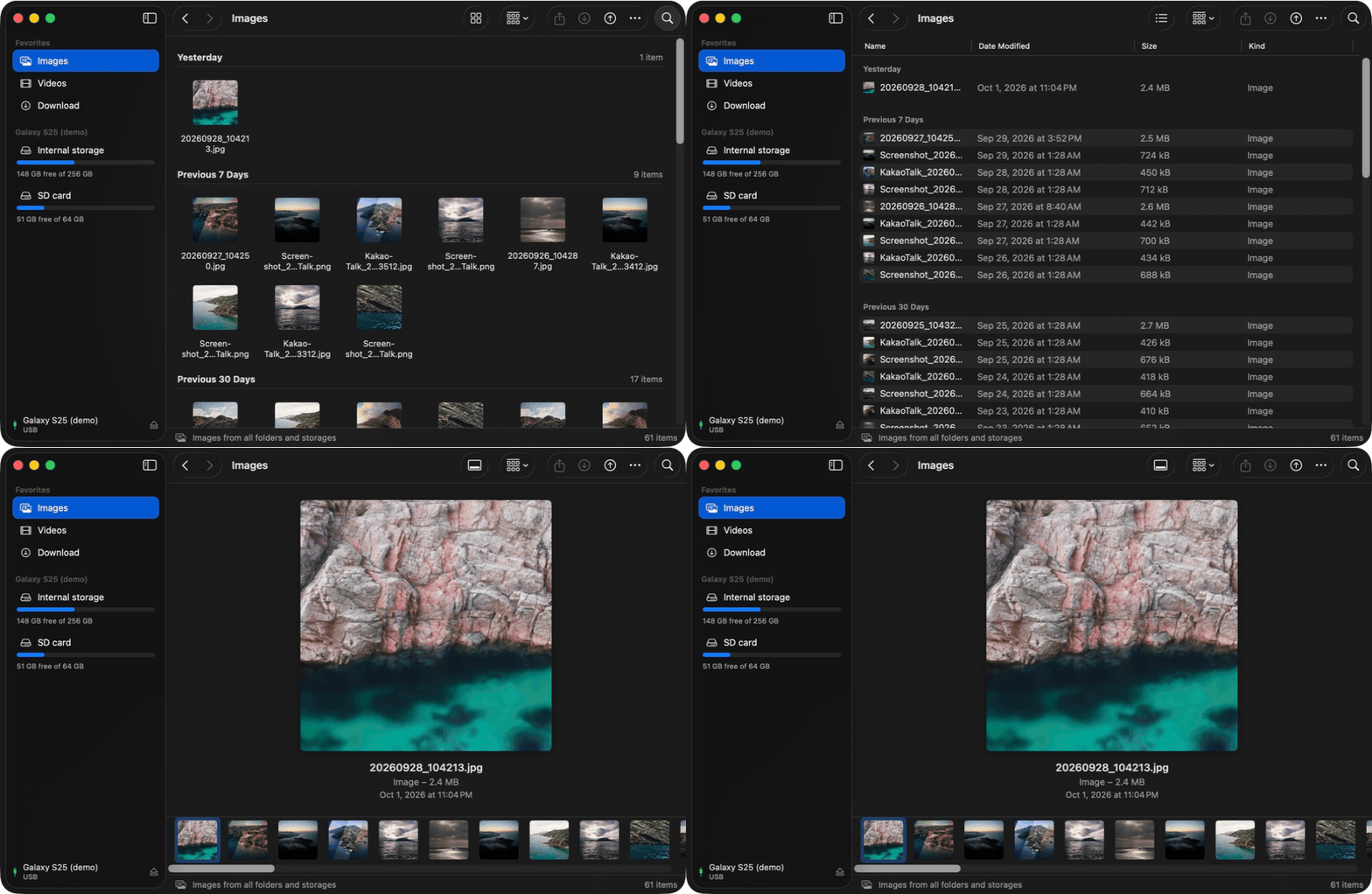
| Do this | How |
|---|---|
| Switch view | View menu or toolbar: Icons ⌘1, List ⌘2, Columns ⌘3, Gallery ⌘4 |
| All photos / videos | Images or Videos in the sidebar |
| Phone’s downloads | Download in the sidebar |
| Group and sort | Group menu: by Kind, Date Modified or Size; sort by Name, Kind, Date or Size |
| Search this folder | Search field in the toolbar |
| Back / Forward | ⌘[ / ⌘] |
| Enclosing folder | ⌘↑ |
| Refresh | ⌘R |
Move files
- Download: select files and click Download (goes to your Downloads folder), or right-click → Download To…, or drag them out to Finder or the Desktop.
- Upload: click Upload, or drag files from Finder into the DroidDock window.
- Open on the Mac: double-click a file.
- Share: click Share to send files through AirDrop, Messages, Mail and so on.
Organize
- New Folder: ⇧⌘N
- Get Info: ⌘I
- Delete: ⌘⌫. This deletes from the phone and can’t be undone.
Disconnect
Click Eject in the toolbar before unplugging. Quitting DroidDock also releases the phone.
Try it without a phone
open /Applications/DroidDock.app --args -demo
This shows a fake Galaxy with folders and generated photos. Browsing works; transfers are refused.
Troubleshooting
| Problem | Fix |
|---|---|
| Won’t connect | Phone unlocked? File transfer chosen in the USB notification? Try another cable or port. |
| Connects, then fails | Another app is holding the phone; quit the apps listed above. |
| Folder looks empty | Unlock the phone; Android hides files while it’s locked. Then ⌘R. |
| Photos folder loads slowly | Turn on USB debugging (above) so DroidDock uses adb. |
| “Allow USB debugging?” keeps coming back | Tick Always allow from this computer. |
Still stuck? Open an issue with your phone model and macOS version.